All Answers
My software products (WSE RemoteApp and WSE WorkFolders) can be used on Windows Server 2016, 2019, 2022, or 2025, and the WSEE Installer can be used on Windows Server 2019, 2022, or 2025. You can switch between using any of those versions of Windows Server as desired. However, since your license is valid for single server use only, you cannot run the software on multiple versions of Windows Server at the same time (i.e., it’s one server install per purchased product). Additionally, in-place upgrades across those different versions of Windows Server are fully supported by the WSEE Installer as well.
That being said… If you are currently running Windows Server 2012 R2 Essentials, then I strongly recommend that you in-place upgrade it to Windows Server 2016 Essentials first (and verify that everything is working) before you then in-place upgrade it on to Windows Server 2022 (or 2025). I talk about doing that over here.
So… The answer to your question is yes.
Lastly, Windows Server 2016 (and hence my software products and the WSEE Installer) will reach end of life on January 12, 2027 (i.e., in about one years time). I plan on retiring at that time and so I (nor my website) will be available going forward from there and so you might want to take that into consideration as well. I haven’t decided what I’m going to do with my software products and the WSEE Installer as of yet, but I’ll most likely release final “sunset” versions of them that my paying customers can continue to use once I’m no longer around (at least until Essentials itself goes kerplunk in the night anyway).
- Mike answered 11 months ago
- last active 11 months ago
Thanks, Mike. That spelled it out well for me. (When I got to the add-to-cart and pricing page, the note there seemed to conflict with ability to use between the different supported versions — not at same time, of course. “NOTE: Each of our products are licensed specifically to the server operating system for which they were designed to run under. Therefore, you must choose the EXACT operating system that your server is currently running in order to receive a functional license for your product purchase.”)
I appreciate your very honest and appropriate caveat about the EOL for WS 2016 WSEE. I think it will still be worth it. And I’m even more appreciative of your time and talent in making the WSEE Installer available along with the extensive support you’ve already provided.
In preparation, I’ve already done an in-place upgrade of WS 2012 R2 and its WSE VM to WS 2016. Unfortunately, I’m one of the users that ran into complications: Windows updates failed, and event logs are chock full of errors, apparently caused by leftovers from the upgrade change. I was able to troubleshoot enough to get all the updates on the host but not on the VM – so far, anyway. It would be nice to have a script or similar tool that could extract full settings of currently used WSEE and apply them to a clean install of a newer WS.
- Mick Mickle answered 11 months ago
- last active 11 months ago
I’ve noticed this one happening for a little while but haven’t been able to track it down until just now (thanks to you). It appears that Microsoft has made some changes to Windows 11 client computers that is causing a failure to take place in WSE RemoteApp’s and WSE WorkFolder’s Definition.xml file (it has nothing to do with the on demand/triggered start of the Essentials services on your client computers though – i.e., that’s how they’re supposed to be started), which results in those “Computer monitoring error” health alerts getting generated. I thought that I had tracked this issue down and corrected it a few months ago, but apparently I only got it fixed on the server-side and not on the client-side of things.
Anyway… I have just released updates for both WSE RemoteApp (i.e., Version 1.255.2054.0) and WSE WorkFolders (i.e., Version 1.0.406.0) that should correct the client-side issue now. After installing the latest update for the add-ins, give them a while to sync everything client-side (24 hours or so) and the “Computer monitoring error” health alerts should then go away.
Thanks for bringing this one to my attention.
- Mike answered 10 months ago
- last active 10 months ago
I did your latest WSEE update yesterday and the Health Report emails began again today. So this was a Microsoft bug that was fixed when you integrated Microsoft’s latest update into your WSEE Installer. One thing I don’t understand is why no one else had the problem. In any case, the issue is resolved.
- ArtinNC answered 10 months ago
When I recently tried to RDP into a WS2016 VM host, I got an error that “Authentication failed because NTLM authentication has been disabled.” This happened a few days after I upgraded to Window 11 24H2. So, like Jeremy reported, it may become a more common issue. This article pretty much confirms it: “Microsoft to disable NTLM by default in future Windows releases”
Microsoft to disable NTLM by default in future Windows releases
For some reason, Jeremy’s group policy settings didn’t quite fix the problem for me. However, following the “Solution for NTLM Authentication Issue” in this Lenovo website did fix the issue:
NTML authentication disabled W11 Pro 24H2
The group policy setting they recommend is to set “Network security: LAN Manager authentication level” to “Send LM & NTLM – use NTLMv2 session security if negotiated.”
- Mick answered 10 months ago
- last active 10 months ago
Open the Event Viewer applet on your Essentials server, go to Windows Logs → Application, and take a look in there for any error events that give an indication as to why your license is invalid. You should see an event getting logged that shows two hardware strings not being equal (≠), which results in the license being considered invalid. If you provide that information to me, I can tell you exactly what is causing the issue. Otherwise, there should be one or more events getting logged there that provide error information if a licensing error is getting thrown, etc.
That being said… Have you made any hardware changes to your server (or to the virtual machine’s configuration if you happen to be using a VM) since you first ran the WSEE Installer? Changing the server’s underlying hardware configuration will indeed cause the license to become invalid. To resolve the issue, you will need to run the WSEE Updater on your Essentials server. Doing that will (re)link your license back up to the server once again. You can download the latest release of the WSEE Updater from here. If the WSEE Updater happens to inform you that the latest update is already installed on your server, then simply check the checkbox stating that you would like to reinstall the update anyway.
- Mike answered 8 months ago
- last active 8 months ago
Thanks for getting back to me. I am wondering if the licence message was a red herring. Looking through the logs, I can’t see anything in relation to hardware strings, errors, warning nor information entries. I am running on the physical hardware now, where the only thing which will change will number of drives connected.
At around the time of the issues, I saw the backup service crashing in the logs, then from then it seemed there were a few other .Net applications crashing, which included the WSE dashboard, and services until I rebooted. I am going though the WER logs to see if I can find what the cause was. I think bottom line is the problems with the WSEE was a symptom of something else failing. It may even be a quirk of an OS in its infancy.
- madlec answered 8 months ago
If you contact us via email support, we can reset your license for you. Be sure to include the “User Name” or “Registration Key” from the license of your purchased product so that we can locate it within our sales database.
- Mike answered 8 months ago
- last active 8 months ago
I suppose that if the price is good enough, then it would indeed be worth upgrading to Windows Server 2025 just so that you have all the latest and greatest security features, etc. That being said… You probably won’t notice much of a difference going from 2022 to 2025 (and there definitely won’t be any noticeable difference as far as the WSEE feature set is concerned). I use 2025 with WSEE installed as my daily driver, and it works wonderfully (i.e., no issues).
Also, please note that I’ve just released an update for the WSEE Installer (i.e., Version 10.0.14393.9060 (Revision 2)), which allows you to in-place upgrade Windows Server 2019 or Windows Server 2022 to Windows Server 2025 via a Feature Update from Windows Update rather than using Windows Server 2025 physical installation media (and messing about with adprep, etc.). Simply install all of the latest Windows Updates onto your server, install the latest release of the WSEE Installer (via the WSEE Updater), open Windows Update and check for updates. You will then see Windows Server 2025 offered as a Feature Update from there. Easy peasy!
EDIT (5/3/2026): It appears that adprep is still required in order to successfully perform an in-place upgrade to Windows Server 2025 via the Feature Update. See this answer for how to do that.
- Mike answered 7 months ago
- last active 7 months ago
Thanks Mike – and for the confirmation of no issues. The in-place upgrade through feature upgrade is perfect (especially removing the need for adprep, etc.) so will be going for this today :- )
- Andrew answered 7 months ago
- last active 7 months ago
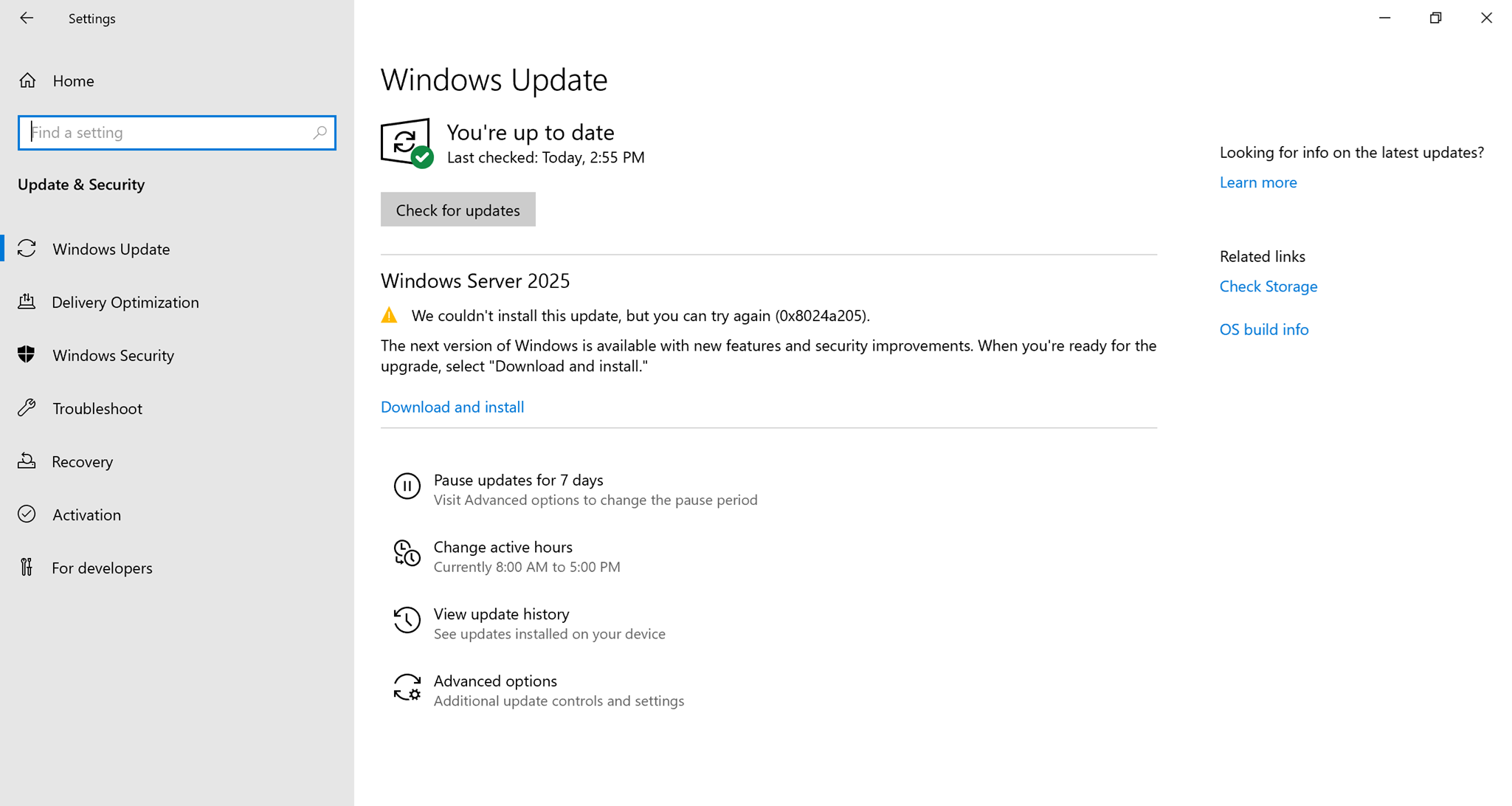
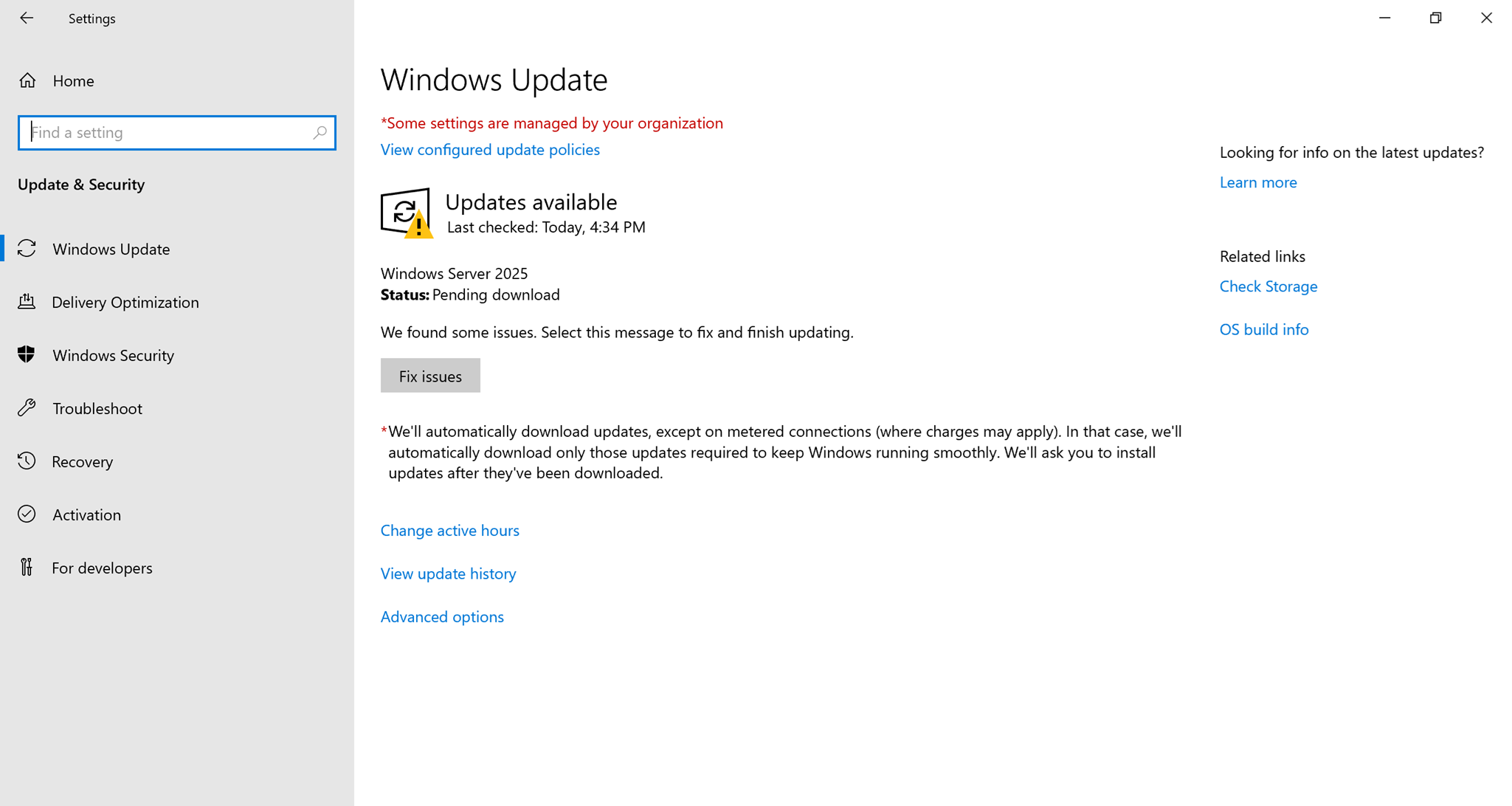
It appears that you will still need to do an adprep in order to successfully in-place upgrade to Windows Server 2025 via the Feature Update that’s now available from Windows Update (see the 5/2/2026 bullet point here). However, it’s easy to do that as follows…
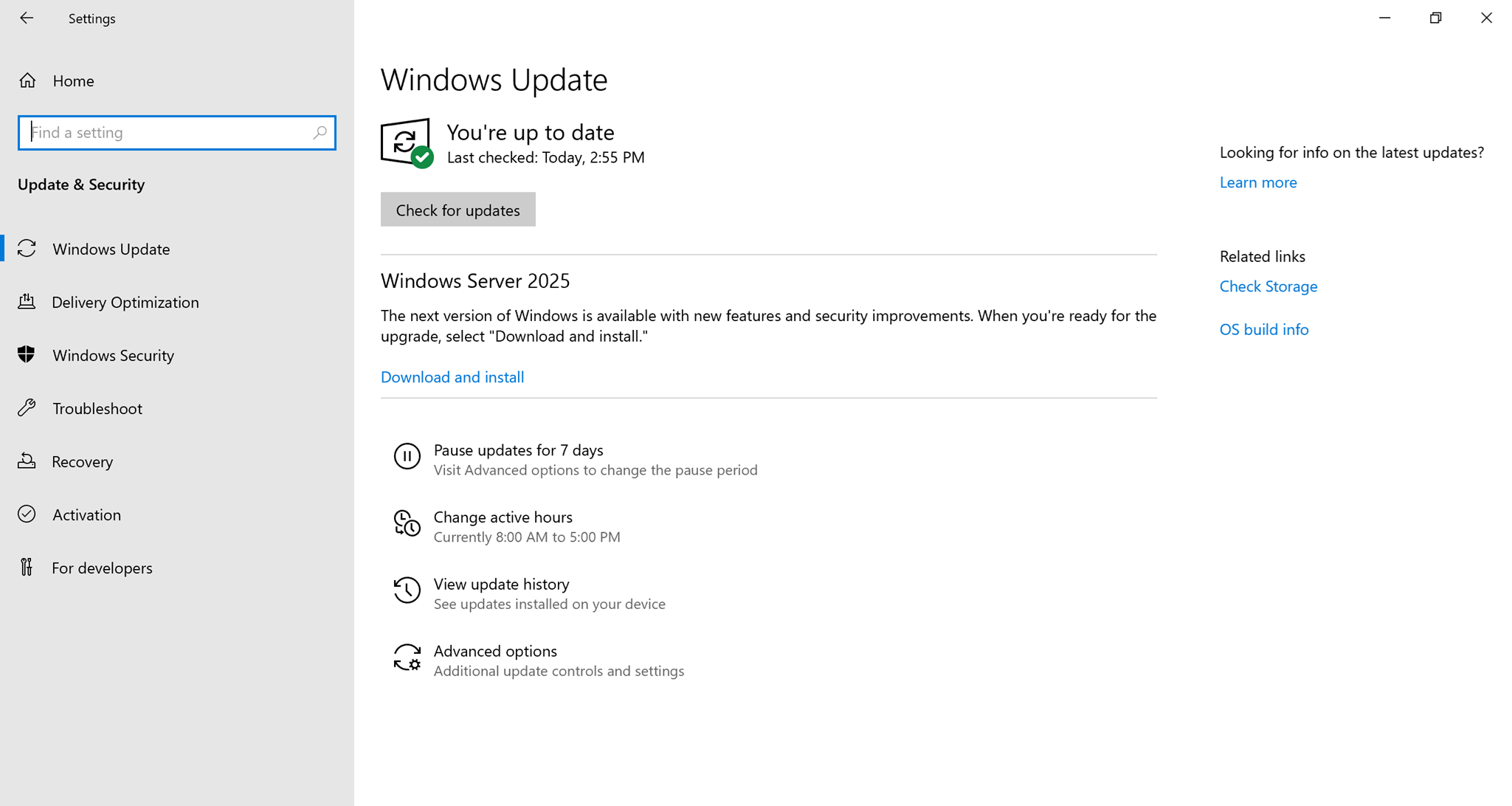
From your Essentials server, open Windows Update, click “Check for Updates” (if required), and then begin installing the Feature Update to Windows Server 2025 by clicking on the “Download and install” link.
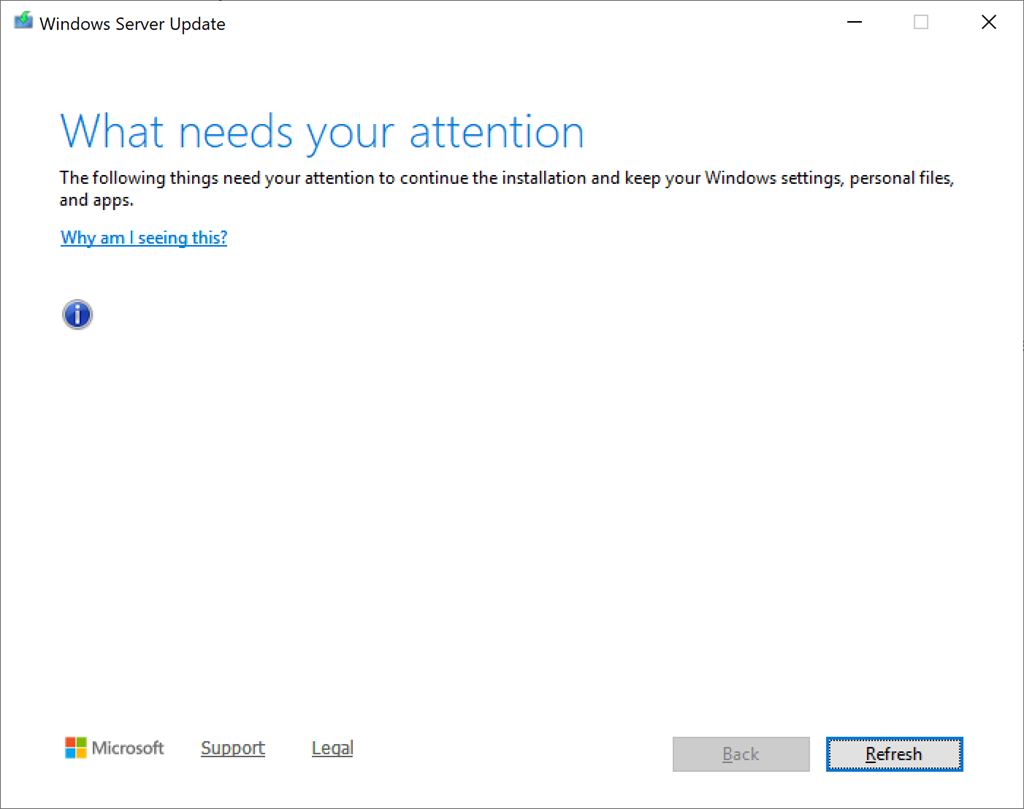
During the Feature Update installation of Windows Server 2025 (at around 35%) a “What needs your attention” window will be shown (with a completely blank/empty list of things!). From here you will need to do the following:
• Click Start → Windows Administrative Tools → Active Directory Users and Computers
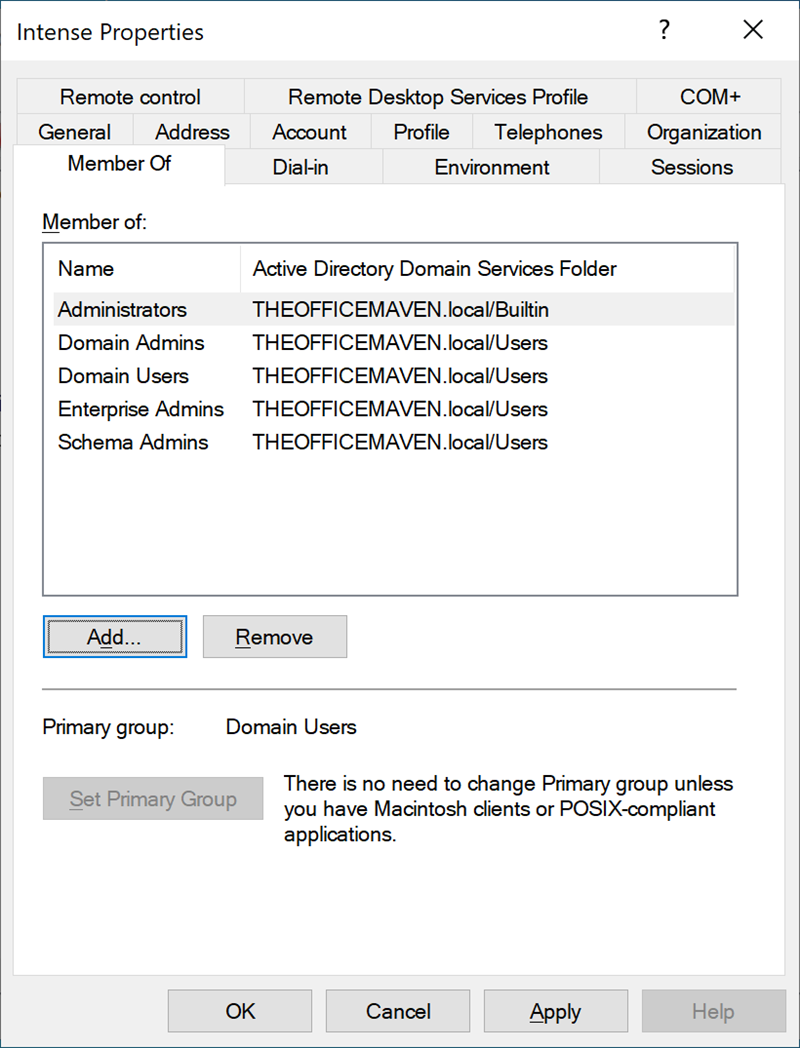
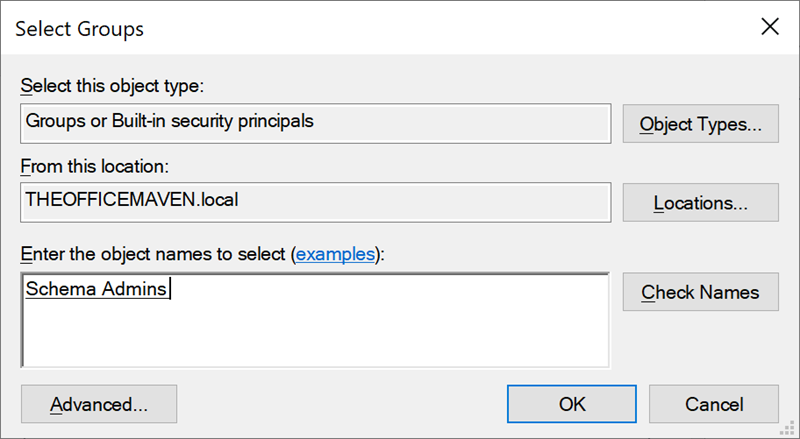
• Under “Users“, double-click on your Essentials server’s administrator name, and in the Properties dialog box that appears, click on the “Member Of” tab, click the “Add” button, type in “Schema Admins” (without the quotes), and click “OK“. Click the “Add” button again, type in “Enterprise Admins” (without the quotes), and then click “OK” twice.
• Sign out and sign back in again (required!).
• Click Start → type “Command Prompt” (without the quotes) and then right click on Command Prompt and select “Run as administrator” from the context menu that appears.
• From the admin command prompt that appears run these two commands:
C:\$WINDOWS.~BT\support\adprep\adprep /forestprep

C:\$WINDOWS.~BT\support\adprep\adprep /domainprep
• Open Windows Update again and click the “Download and install” link (or click the “Fix issues” button if it’s available) to resume the installation.
NOTE: Microsoft will forcefully remove all of the “Essentials bits” from the server during the in-place upgrade, and so you will need to run the WSEE Installer after performing the in-place upgrade in order to reinstall WSEE onto the server again. All of your existing users, devices, settings, client backups, etc. will remain in tact throughout the entire process.
- Mike answered 7 months ago
- last active 7 months ago
Yes, I just found that out as well. Also had to make sure the admin account I was using had all the right permissions and then rebooted before running adprep.
Updated completed and WSEE reinstalled – just now working through any further optimisations I can now make, but all looking good (so far).
Server 2025 did take a good few hours working at 99% of the upgrade, but eventually got there!
- Andrew answered 7 months ago
Unfortunately, WSEE cannot be setup in a workgroup. It must either be or see a domain controller. That being said, you can skip domain joining your client computers so that they behave in the same way as your WHS clients did. SEE: How to make Windows Server 2012 R2 Essentials client connector install behave just like Windows Home Server
While you should indeed assign a static IPv4 LAN network address to your server (and then point the DNS of your connected client computers to it – see here), WSEE will work just fine with a dynamic IP address from your ISP (for use with the server’s built-in Anywhere Access/Remote Web Access website). If you use a .remotewebaccess.com Microsoft personalized domain name (which is exactly the same as using a .windowshomeserver.com domain in WHS), then Microsoft provides a dynamic DNS update service that will keep your dynamic IP address correctly pointed to the server for you (just as WHS did).
As for backup and restore… It should be able to do all of those things you’ve mentioned. I’m unfamiliar with Stablebit, but WSEE has it’s own drive pool feature built in (called Storage Spaces) and the backup and restore features work just fine with it. You’ll need to test things out for yourself to make sure that they work the way you desire (as far as Stablebit is concerned). However, if you were able to do it in WHS, then I imagine that you’ll be able to do it in WSEE no problem.
SERVER BACKUP
Set up or customize server backup
Manage Server Backup in Windows Server Essentials
How to backup and restore your Windows Server Essentials 2016
CLIENT BACKUP
Restore a full system from an existing client computer backup
Manage Client Computer Backup in Windows Server Essentials
How computer backup works
Troubleshoot computer backup and restore errors in Windows Server Essentials
- Mike answered 7 months ago
- last active 7 months ago
Chewing on all this. Thanks for the specific answers, Mike.
Apologies for confusing WSEE behaviors with a third-party software. Specific to the WSEE’s restore features, will it allow:
- restoration of an entire disk image?
- the ability to choose to restore a particular drive volume?
- the ability to choose individual files and folders to restore?
- Lioninstreet answered 7 months ago
Mike,
I started reading the microsoft links you provided and it looks like most or all of the restore feature questions I just posed are answered there. Should I have additional questions after re-reading, I’ll circle back.
- Lioninstreet answered 7 months ago
Those FreeDNS tasks are still working just fine for me here, and to date, no one else has mentioned an issue with them. Probably the best thing for you to do would be to open the Task Scheduler applet on your Essentials server, go to Task Scheduler Library\Microsoft\Windows\PowerShell\ScheduledJobs, take a look at the “RunFreeDnsUpdate” and “StartFreeDnsJob” tasks and make sure that everything looks as expected (i.e., the Triggers, Actions, etc.). Looking at the task’s History may also prove to be helpful for you as well.
Otherwise, you can try using the Duck DNS script instead (I actually have both of them running on my main Essentials server – just for the heck of it).
EDIT: BTW, you can also open the Event Viewer applet on your Essentials server and take a look at the Windows Logs\Application log and filter it on the event source named “FreeDNS Updater” just to see if any errors or warnings are getting logged.
- Mike answered 7 months ago
- last active 7 months ago
Under Windows Server 2022 there’s an issue (bug) that causes the user to be automatically opted-out of the “Get updates for other Microsoft products” task whenever a new virus definition set is installed by Windows Update. I’m not sure if the bug still exists in the most recent releases of 2022, and I was under the impression that the bug didn’t exist at all under 2025 (but maybe it does).
So… The WSEE Installer has code in it that checks to see if the task isn’t already opted-in (when running under 2022), and if not, it then goes ahead and forces the opt-in for you (via a call to the native method that does that within the underlying Essentials source code) and then it clears the “Microsoft Update is not enabled” health alert if it happens to exist.
I’ll go ahead and enable that fix for 2025 as well under the next release of the WSEE Installer/Updater (which should be out on July 14 with the next release of Windows Updates). Hopefully that resolves the issue for you (although, that being said, I’m not seeing the issue happen over here on any of our 2025 Essentials servers as all of them have the task enabled just fine via the HOME -> Get Started -> SETUP panel of the server Dashboard).
Lastly, the “Get updates for other Microsoft products” task within TaskStatus.xml has a key value of 8412D35A-13EE-4112-AE0B-F7DBC83EA83D (and mine shows all 9 task status entries). However, you probably shouldn’t manually enable it within that file if it hasn’t truly been enabled (i.e., maybe wait for the fix I release before resorting to doing that).
- Mike answered 5 months ago
Hmm… I’m not exactly sure what’s going on there. Please try the following to see if it resolves the issue for you:
1. Sign in to your Essentials server as an Administrator.
2. Open the following folder on the Essentials server:
C:\ProgramData\Microsoft\Windows Server\Data\addins
NOTE: The ProgramData folder is a hidden system folder, and so you’ll need to enable the viewing of hidden files and folders in order for you to be able to see its contents. That can be done using the “Folder Options” Control Panel applet (via its “View” tab).
3. In the “packages” subfolder, delete the file named “009ef2c9-1a5c-4564-8156-92b85d9d7705.wssx” (if it exists).
4. In the “msi” subfolder, delete the entire subfolder named “009ef2c9-1a5c-4564-8156-92b85d9d7705” (if it exists).
5. Open the following folder on the Essentials server:
C:\ProgramData\Microsoft\Windows Server\Data\settingsproviderdata\WEBSERVICESPLATFORM\ADDINS
6. Look through all of the .xml files that are in that folder until you find the one that corresponds to WSE RemoteApp (just double click on the .xml file to open it in the web browser, or you can open it in any text-based reader app such as Notepad, WordPad, etc. and then search its text contents for “WSE RemoteApp” to know that you’ve located the correct .xml file). Once you’ve located the correct .xml file, go ahead and delete it from your Essentials server (note that you can also delete its corresponding .bak file as well).
NOTE: This simple text-based file contains installation information, etc. about the WSE RemoteApp add-in (such as its version number, etc.). It will be automatically recreated the next time you perform an installation of the add-in.
7. Download the latest release of the WSE RemoteApp Updater from here (as of this writing, the current/minimum release is Version 1.255.2103.0).
8. Run the WSE RemoteApp Updater program from the desktop of the Essentials server.
Does that resolve the issue for you?
- Mike answered 5 months ago
- last active 5 months ago
Hi Mike,
Thanks for the quick reply. I tried the file deletion then run the latest install and got the same error.
What is interesting is that the files got recreated.
While following your guide I saw a log folder and this is what I see in there after the install:
———————————————————[44540] 260710.213032.9416: Addins: Parsed command line args for InstallAddin.exe. Path=C:\Users\Administrator.TECHNOBUG\AppData\Local\Temp\n0d5uu0f.wssx,Silent=False,ClientInstall=False[44540] 260710.213033.1727: General: VerifyPackageResult=OkToInstall[44540] 260710.213033.1757: General: DoInstall=True[29272] 260710.213033.2667: Addins: Looking for EULA at: Eula-en-GB.rtf[29272] 260710.213033.2692: Addins: Looking for EULA at: Eula-en.rtf[29272] 260710.213033.2692: Addins: Extracting EULA: Eula.rtf[44540] 260710.213033.5742: General: VerifyPackageResult=OkToInstall[44540] 260710.213033.5748: General: DoInstall=True[44540] 260710.213033.7078: InstallAddinWizard: Created wizard with addin of type: Microsoft.WindowsServerSolutions.Console.AddIns.AddinPackages.PackageAddin[44540] 260710.213052.7363: Addins: Async operation did not complete: Error=Microsoft.WindowsServerSolutions.AddinInfrastructure.AddInException: InstallErrorat Microsoft.WindowsServerSolutions.AddinInfrastructure.AddInManager.PerformAction[T](ProviderConnector`1 connector, Action`1 action, Boolean waitForCallback)at Microsoft.WindowsServerSolutions.AddinInfrastructure.AddInManager.<>c__DisplayClass66_0.<InstallAddInAsync>b__0(Object sender, DoWorkEventArgs e)at System.ComponentModel.BackgroundWorker.OnDoWork(DoWorkEventArgs e)at System.ComponentModel.BackgroundWorker.WorkerThreadStart(Object argument)[44540] 260710.213052.7403: Exception:—————————————An exception of type ‘Type: Microsoft.WindowsServerSolutions.AddinInfrastructure.AddInException, AddinInfrastructure, Version=10.0.0.0, Culture=neutral, PublicKeyToken=31bf3856ad364e35’ has occurred.Timestamp: 07/10/2026 21:30:52Message: InstallErrorStack: at Microsoft.WindowsServerSolutions.AddinInfrastructure.AddInManager.PerformAction[T](ProviderConnector`1 connector, Action`1 action, Boolean waitForCallback)at Microsoft.WindowsServerSolutions.AddinInfrastructure.AddInManager.<>c__DisplayClass66_0.<InstallAddInAsync>b__0(Object sender, DoWorkEventArgs e)at System.ComponentModel.BackgroundWorker.OnDoWork(DoWorkEventArgs e)at System.ComponentModel.BackgroundWorker.WorkerThreadStart(Object argument)[44540] 260710.213057.0268: Addins: Exiting with return code: -1
- Kal answered 5 months ago
Some more logs that might be helpful
https://1drv.ms/u/c/8162175425df9132/IQCKH_tBbmukQLeRnnxjxVRJAYqFCbR9jqZ3h5gJOiJbhZc?e=BeEtRl
- Kal answered 5 months ago