Is it worth upgrading from Server Standard 2022 to 2025?
Just seeing some really low prices for 2025 Standard (16-core) on Wowcher and so wondering whether it is now worth considering the upgrade to 2025.
Currently running WSEE on Server Standard 2022 doing all I need and have seen the articles/comments on some of the processes needed to be followed to do an in-place upgrade.
I’m only using it for my “home office” specifically for client backup (3 devices) plus shared folders/printers and DNS, as well as running the Mezzmo media server and Veeam Backup Community Edition server backup. I’ve recently disabled Remote Web Access as my server was getting password attacks (locking accounts) and had not been used for the last 3 or 4 years.
Is the small amount of possible pain worth it?
Obviously, the longer support cycle for Windows itself is one big plus, as is some features like WinGet being there.
Anything specific to watch out for?
- Andrew asked 5 months ago
- You must log in to post comments.
I suppose that if the price is good enough, then it would indeed be worth upgrading to Windows Server 2025 just so that you have all the latest and greatest security features, etc. That being said… You probably won’t notice much of a difference going from 2022 to 2025 (and there definitely won’t be any noticeable difference as far as the WSEE feature set is concerned). I use 2025 with WSEE installed as my daily driver, and it works wonderfully (i.e., no issues).
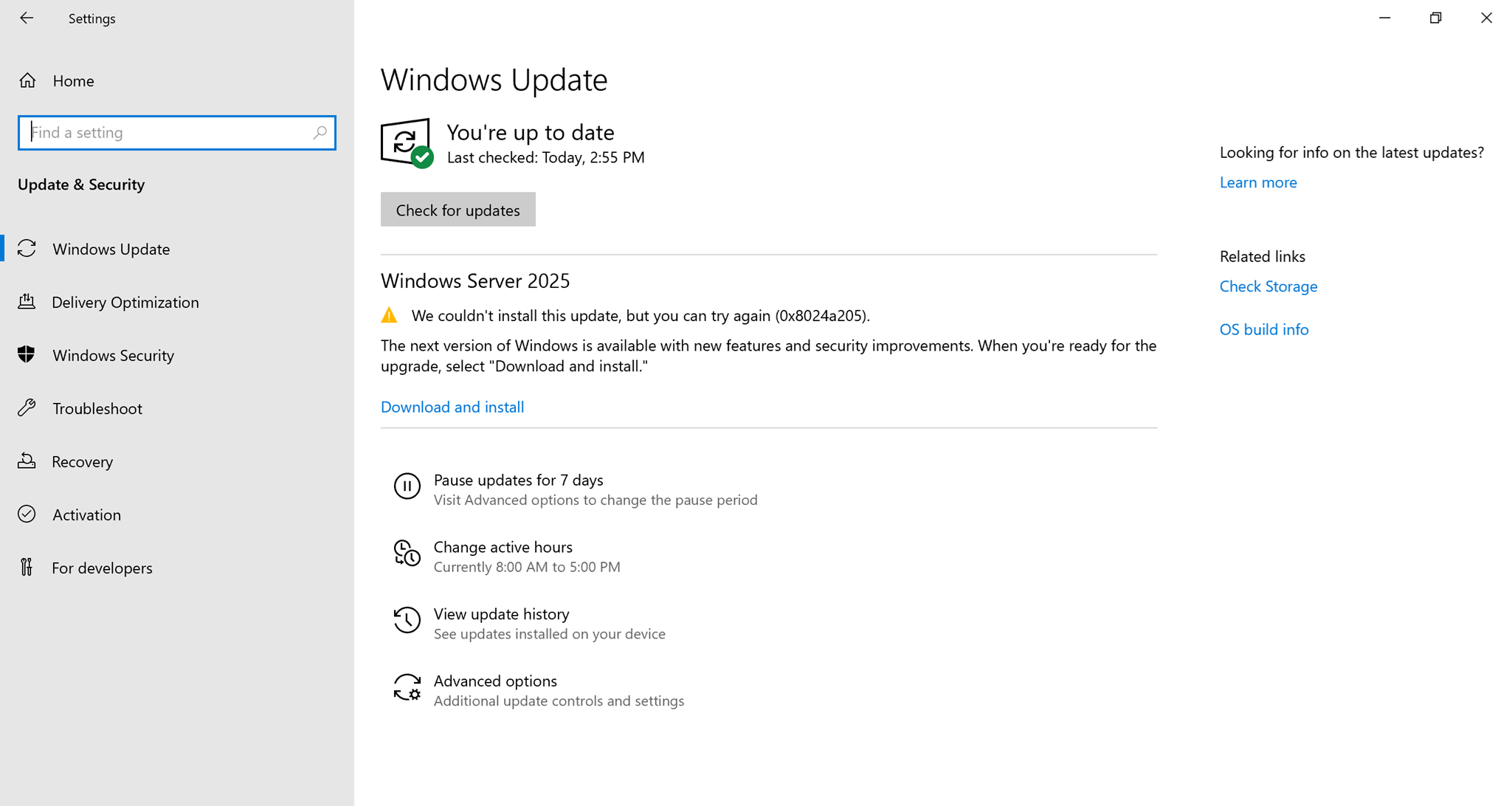
Also, please note that I’ve just released an update for the WSEE Installer (i.e., Version 10.0.14393.9060 (Revision 2)), which allows you to in-place upgrade Windows Server 2019 or Windows Server 2022 to Windows Server 2025 via a Feature Update from Windows Update rather than using Windows Server 2025 physical installation media (and messing about with adprep, etc.). Simply install all of the latest Windows Updates onto your server, install the latest release of the WSEE Installer (via the WSEE Updater), open Windows Update and check for updates. You will then see Windows Server 2025 offered as a Feature Update from there. Easy peasy!
EDIT (5/3/2026): It appears that adprep is still required in order to successfully perform an in-place upgrade to Windows Server 2025 via the Feature Update. See this answer for how to do that.
- Mike answered 5 months ago
- last edited 5 months ago
- You must log in to post comments.
Thanks Mike – and for the confirmation of no issues. The in-place upgrade through feature upgrade is perfect (especially removing the need for adprep, etc.) so will be going for this today :- )
- Andrew answered 5 months ago
- last edited 5 months ago
- You must log in to post comments.
It appears that you will still need to do an adprep in order to successfully in-place upgrade to Windows Server 2025 via the Feature Update that’s now available from Windows Update (see the 5/2/2026 bullet point here). However, it’s easy to do that as follows…
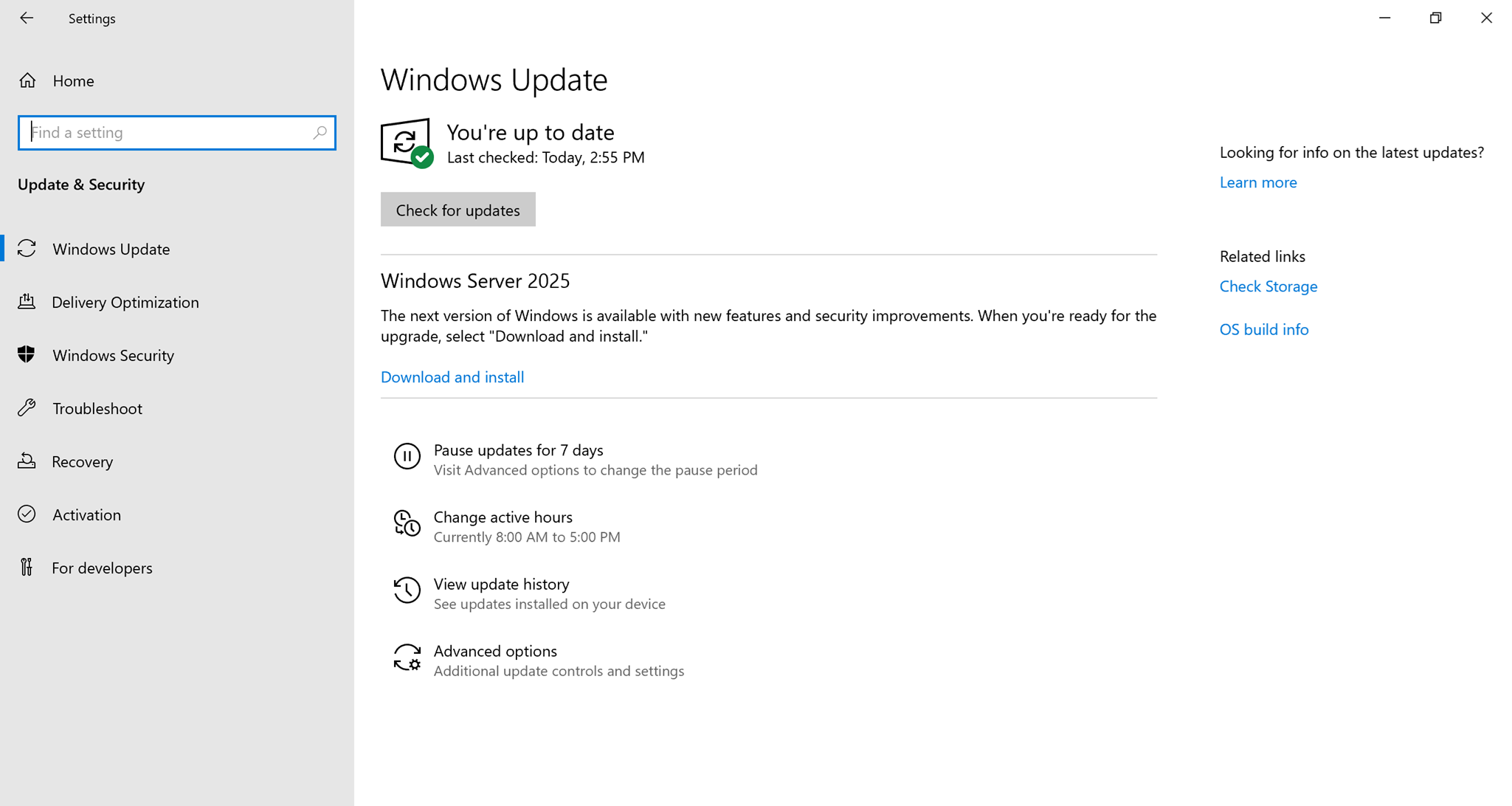
From your Essentials server, open Windows Update, click “Check for Updates” (if required), and then begin installing the Feature Update to Windows Server 2025 by clicking on the “Download and install” link.
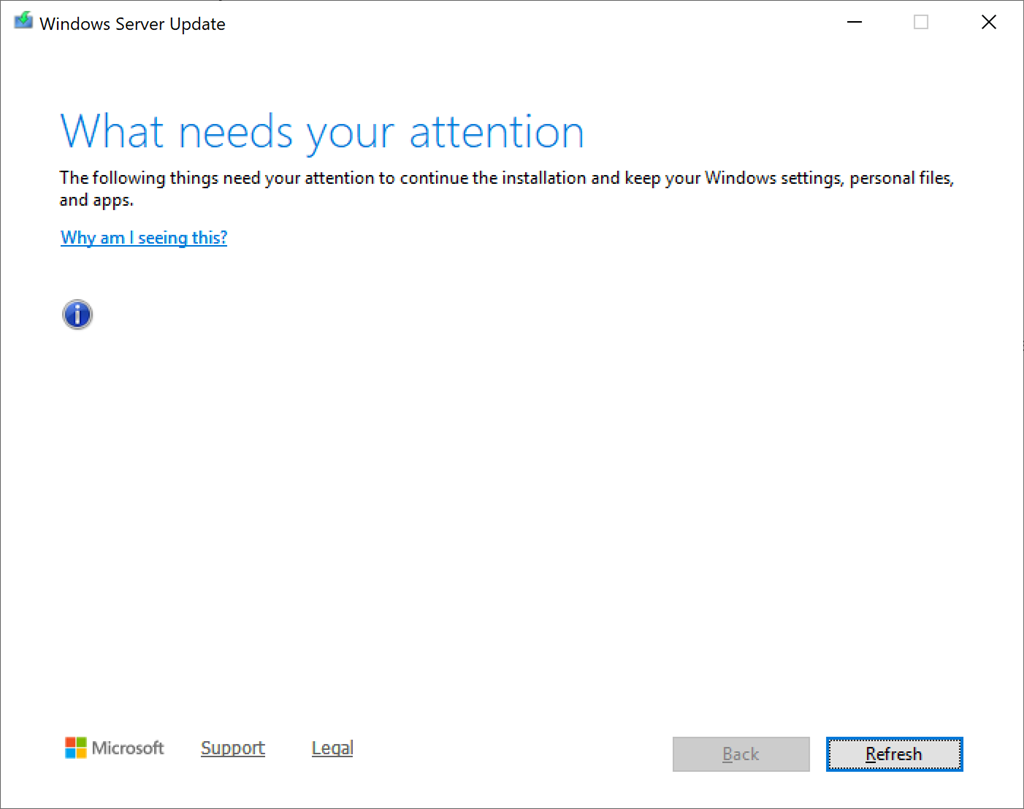
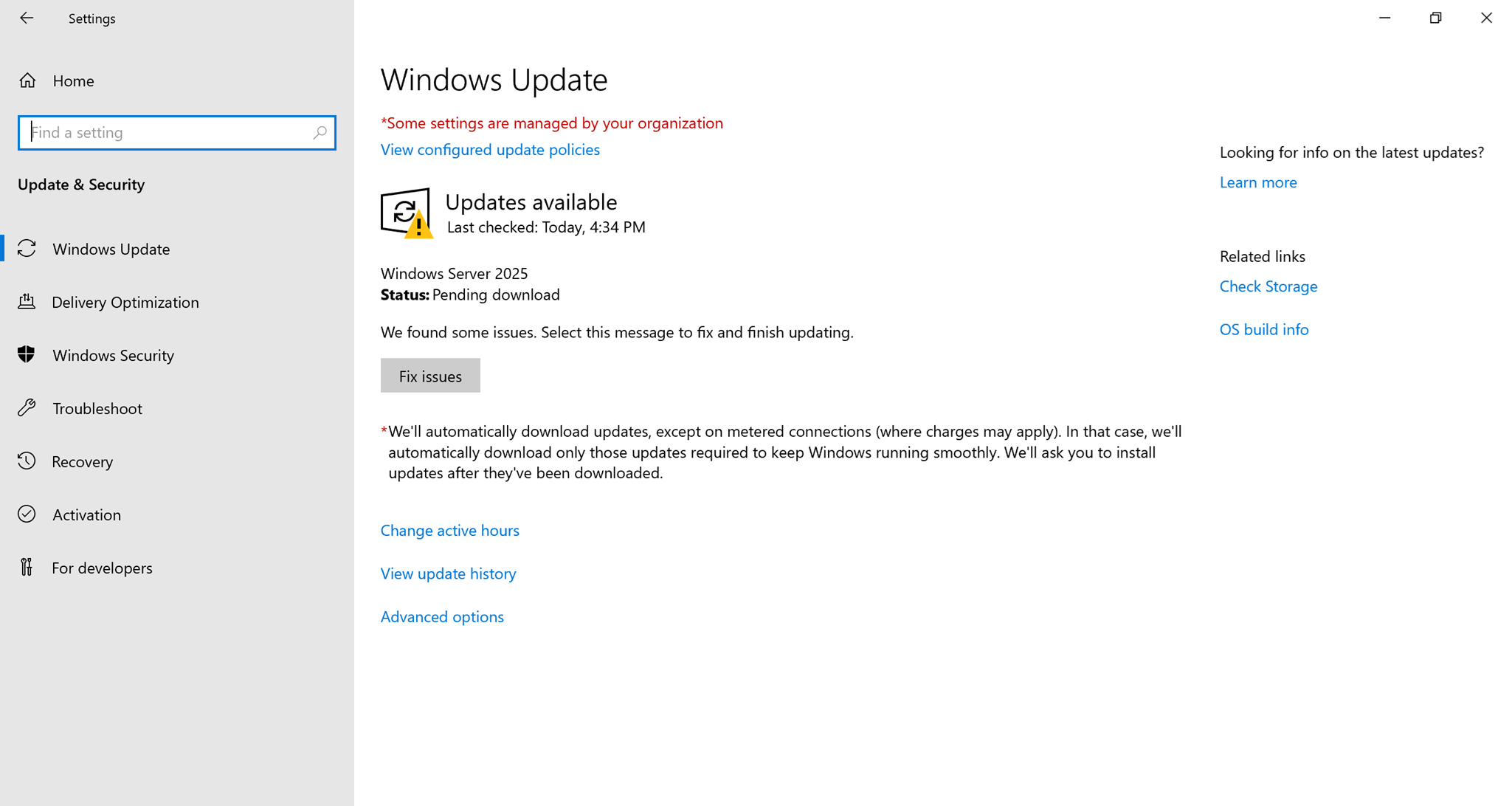
During the Feature Update installation of Windows Server 2025 (at around 35%) a “What needs your attention” window will be shown (with a completely blank/empty list of things!). From here you will need to do the following:
• Click Start → Windows Administrative Tools → Active Directory Users and Computers
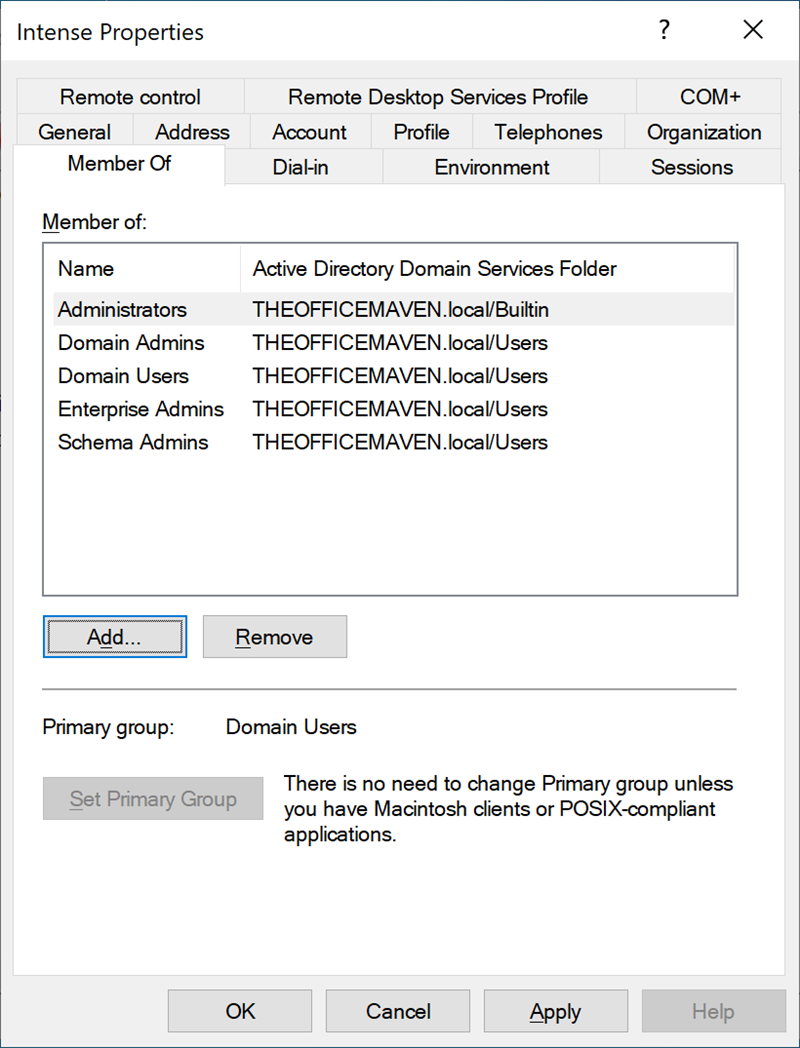
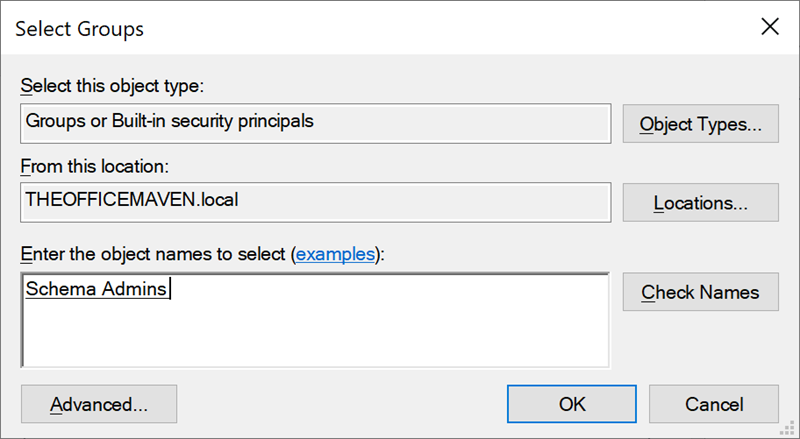
• Under “Users“, double-click on your Essentials server’s administrator name, and in the Properties dialog box that appears, click on the “Member Of” tab, click the “Add” button, type in “Schema Admins” (without the quotes), and click “OK“. Click the “Add” button again, type in “Enterprise Admins” (without the quotes), and then click “OK” twice.
• Sign out and sign back in again (required!).
• Click Start → type “Command Prompt” (without the quotes) and then right click on Command Prompt and select “Run as administrator” from the context menu that appears.
• From the admin command prompt that appears run these two commands:
C:\$WINDOWS.~BT\support\adprep\adprep /forestprep

C:\$WINDOWS.~BT\support\adprep\adprep /domainprep
• Open Windows Update again and click the “Download and install” link (or click the “Fix issues” button if it’s available) to resume the installation.
NOTE: Microsoft will forcefully remove all of the “Essentials bits” from the server during the in-place upgrade, and so you will need to run the WSEE Installer after performing the in-place upgrade in order to reinstall WSEE onto the server again. All of your existing users, devices, settings, client backups, etc. will remain in tact throughout the entire process.
- Mike answered 5 months ago
- last edited 5 months ago
- After the in-place upgrade has been completed, you should remove your Essentials server’s administrator from the “Schema Admins” and “Enterprise Admins” groups for security purposes. You may also delete the C:\Windows.old folder to free up disk space.
- Unfortunately, the Feature Update will not appear in Windows Update when using the Windows Server 2019 Essentials SKU (not even after transitioning it to Standard!).

- You must log in to post comments.
Yes, I just found that out as well. Also had to make sure the admin account I was using had all the right permissions and then rebooted before running adprep.
Updated completed and WSEE reinstalled – just now working through any further optimisations I can now make, but all looking good (so far).
Server 2025 did take a good few hours working at 99% of the upgrade, but eventually got there!
- Andrew answered 5 months ago
- Glad to hear it and yes the install seems very slow for whatever reason. Probably faster to do it from physical installation media instead (if you have access to a retail copy of Windows Server 2025 that is).
- You must log in to post comments.