
WHS Outlook 2003
 WHS Outlook is a Windows Home Server V1/2003 add-in that provides individual user-level access to Microsoft Outlook from your server. WHS Outlook allows a single server-side installation of Microsoft Outlook to be accessed by up to 10 users of your network. Using the Remote Desktop capabilities of your server, WHS Outlook provides your users with full access to their very own instance of Microsoft Outlook from any Windows-based computer on your network, or from almost anywhere using your server’s built-in Web Access website.
Screenshots


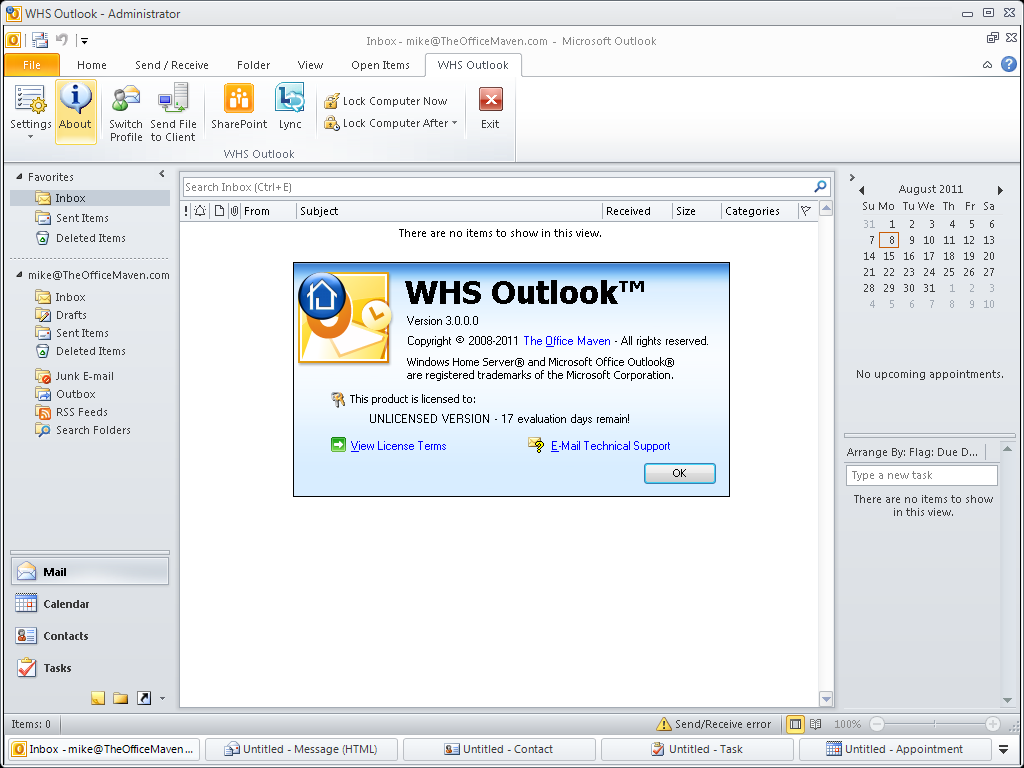


Installation Notes
Before installing WHS Outlook, you will need to perform a Remote Desktop Connection to your Windows Home Server as the Administrator and install a copy of Microsoft Outlook (2010, 2007, or 2003) directly on your home server.
Once you have Outlook installed, fully updated, and running properly on your Administrator’s desktop, you can then go ahead install the WHS Outlook add-in into the Windows Home Server Console (just as you would any other Windows Home Server add-in).
After the WHS Outlook add-in has been installed, open the Windows Home Server Console, click on “Settings“, locate the new “WHS Outlook” settings tab, click the “Configure” button, and turn on User Accounts access. You may also enable Web Site access at this time if so desired. After that, you can choose which of your Windows Home Server users you want to allow access to WHS Outlook, and follow the on-screen prompts to begin using the add-in.
WHS Outlook can be used completely free of charge for up to 21 days. To continue using WHS Outlook after that, you will need to purchase a license and register the add-in. Click the shopping cart link, located in the sidebar of this page, to purchase a license for WHS Outlook. Upon receipt of payment, you will be sent personalized registration information along with detailed instructions on how to register the add-in.
For more information on installing WHS Outlook, please see the ReadMe.txt file included with the download.
WHS Outlook 2003
Platform: Windows Home Server V1/2003
Last Version: 3.1.0.0
 NOTE: This product has been discontinued and is no longer available.